Did you know that over 900 million professionals rely on LinkedIn to build connections and drive business? Yet, standing out in crowded LinkedIn feeds has never been tougher. Eye-catching, readable content is the new currency for engagement.
Many users struggle to make their posts, messages, and profiles visually appealing. This is where the linkedin text formatter comes in, offering tools to improve clarity, boost engagement, and strengthen your personal brand.
In this guide, you will discover what a linkedin text formatter is, why it matters in 2025, essential formatting features, step-by-step instructions, pro tips, and troubleshooting strategies. Get ready to master LinkedIn text formatting for maximum impact.
What is a LinkedIn Text Formatter?
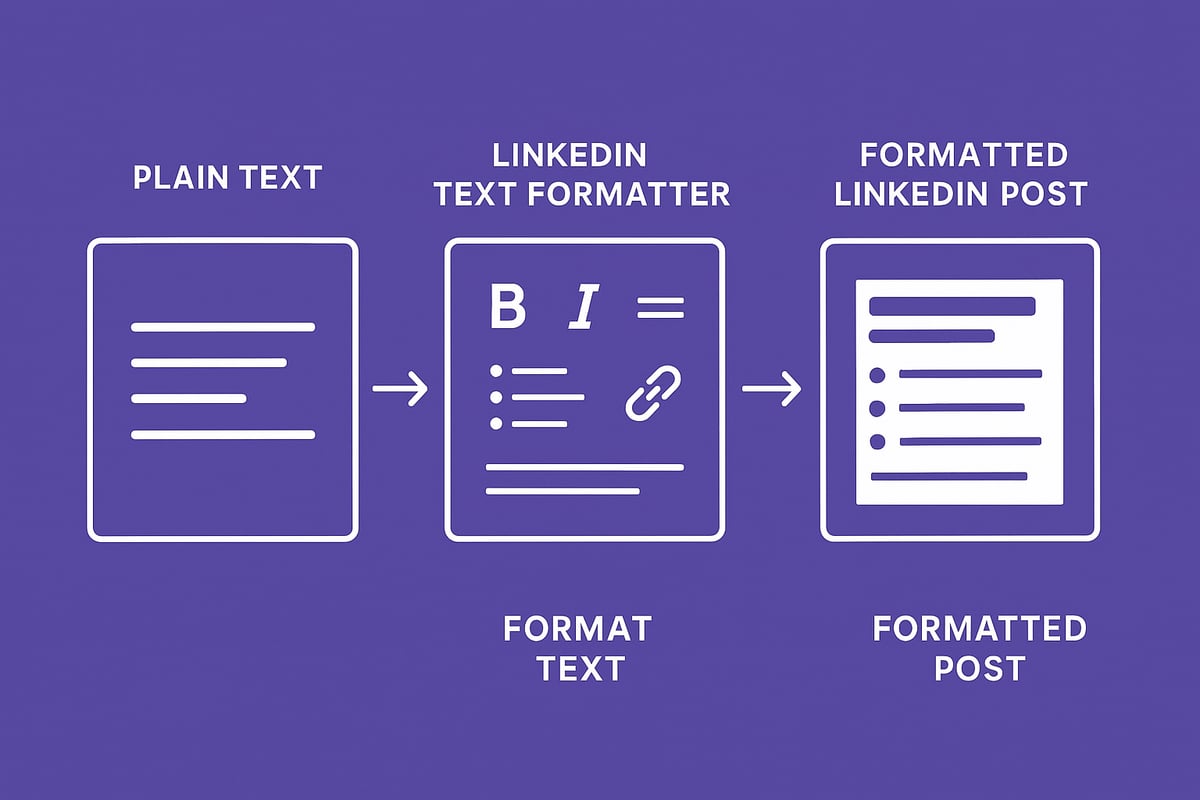
Standing out on LinkedIn requires more than just compelling words. The way you present your content can make a dramatic difference. Enter the linkedin text formatter, a specialized tool designed to transform ordinary LinkedIn posts, messages, and profiles into visually engaging and professional content that gets noticed.
Definition and Core Purpose
A linkedin text formatter is a digital tool that lets users apply advanced text styles to their LinkedIn content. Its core function is to add visual hierarchy and emphasis where LinkedIn’s basic editor falls short.
While LinkedIn’s native editor allows simple actions like line breaks or hashtags, a linkedin text formatter enables you to use bold, italics, underlining, and more. This distinction is vital, as it elevates the readability and professionalism of your posts, comments, and even your profile summary.
Formatting matters because first impressions count. A well-styled post is easier to scan, increases engagement, and signals authority in your field.
Evolution of LinkedIn Formatting (2018–2025)
LinkedIn’s formatting capabilities have evolved significantly since 2018. Early on, the platform offered minimal styling options, leading to cluttered and hard-to-read content.
As user demand for richer, clearer communication grew, third-party formatter tools gained popularity. These tools filled the gap, allowing users to enhance their LinkedIn presence beyond what the platform natively allowed.
In 2025, LinkedIn introduced an updated editor with limited support for bold and italics, but restrictions remain. Many professionals still rely on a linkedin text formatter for features like bullet points, custom symbols, and consistent styling across devices.
Types of Formatting Options Supported
The best linkedin text formatter tools support a range of formatting choices, including:
- Bold for key points
- Italics for emphasis
- Underlined and strikethrough text
- Monospace for technical terms
- Bullet points and numbered lists
- Custom symbols and Unicode characters
There are two main formatting technologies: Unicode and rich text. Unicode is widely compatible but may appear differently on some devices. Rich text offers more style variety but can lose formatting when pasted.
For practical tips on using these features, see LinkedIn Text Formatting Best Practices.
Impact on Engagement and Visibility
Formatting isn’t just about looks, it delivers results. Case studies reveal that posts crafted with a linkedin text formatter can see up to 30% higher engagement, according to SocialInsider (2023).
Here’s a quick comparison:
| Format Style | Avg. Engagement Increase |
|---|---|
| Plain Text | 0% |
| Basic Formatting | 12% |
| Advanced Formatting | 30% |
Well-formatted content also garners more responses in direct messages and comments, making your outreach more effective.
Common Use Cases
A linkedin text formatter can be used in various scenarios:
- Enhancing LinkedIn posts for better reach
- Structuring comments to stand out in discussions
- Crafting direct messages that get noticed
- Polishing profile sections for a professional look
Consider this before-and-after example:
Before:
Looking for marketing partners let’s connect.
After (formatted):
Looking for Marketing Partners?
- Let’s connect and collaborate!
- Open to new opportunities.
The difference is immediate—your message is clearer, more engaging, and more likely to drive action.
Why Formatting Matters on LinkedIn in 2025
Standing out on LinkedIn in 2025 is no longer just about what you write, but how you present it. The right formatting can transform a block of text into a dynamic, engaging story that draws the eye and boosts your credibility. Let’s unpack why investing time in mastering the linkedin text formatter is essential for anyone serious about professional impact this year.

The Science of Visual Hierarchy
Humans process visually structured information faster and retain it longer. Bold headings, bullet points, and emphasis guide the reader’s eye, making complex ideas digestible at a glance. By using a linkedin text formatter, you create a clear visual path through your content.
Recent studies, such as Phrasing for UX: Enhancing Information Engagement, show that formatted text increases information retention and engagement rates. Strategic use of formatting ensures your audience not only reads but remembers your message.
LinkedIn’s Algorithm and Content Ranking
LinkedIn’s 2025 algorithm rewards posts that are easy to scan and interact with. Structured formatting, such as lists and bolded key phrases, signals quality content. According to Hootsuite’s 2024 data, posts with clear formatting are 22% more likely to be shared.
Using a linkedin text formatter can help you structure your posts for maximum algorithmic visibility. This small investment in your content’s appearance can yield significant returns in reach and engagement.
Personal Branding and Professionalism
How you format your LinkedIn posts says as much about your brand as your words do. Influencers and thought leaders consistently use formatting to highlight expertise, create memorable hooks, and reinforce their brand identity.
By leveraging a linkedin text formatter, you project authority and attention to detail. This polish sets you apart in a sea of generic posts, making your profile and content unmistakably professional.
Accessibility and Inclusivity
Accessible content is not optional in 2025. Formatting improves readability for everyone, especially those using screen readers or with visual processing differences. Proper use of headers, bullet points, and spacing ensures your message is inclusive.
Best practices include avoiding excessive symbols and ensuring contrast between text and background. A disciplined approach with your linkedin text formatter makes your content available to the widest audience possible.
Mobile vs. Desktop Experience
LinkedIn users switch between devices constantly. What looks crisp on desktop can appear cluttered or misaligned on mobile. Before posting, always preview your formatted text on both platforms.
A reliable linkedin text formatter helps maintain consistency across screens. Use short paragraphs, avoid wide tables, and test how special characters display to guarantee your message lands perfectly every time.
Pitfalls of Over-Formatting
It’s tempting to use every available style, but restraint is key. Overuse of bold, italics, symbols, or non-standard fonts can make content appear spammy or unprofessional. LinkedIn’s guidelines favor clarity and simplicity.
Stick to a few well-chosen enhancements when using a linkedin text formatter. Review your posts for readability and always prioritize a professional appearance to build trust with your audience.
Key Features of the Best LinkedIn Text Formatter Tools (2025)
Choosing the right linkedin text formatter can transform your LinkedIn presence. The best tools in 2025 combine advanced formatting features, seamless usability, and reliable integration. Let us break down what sets top formatter tools apart.
Essential Formatting Capabilities
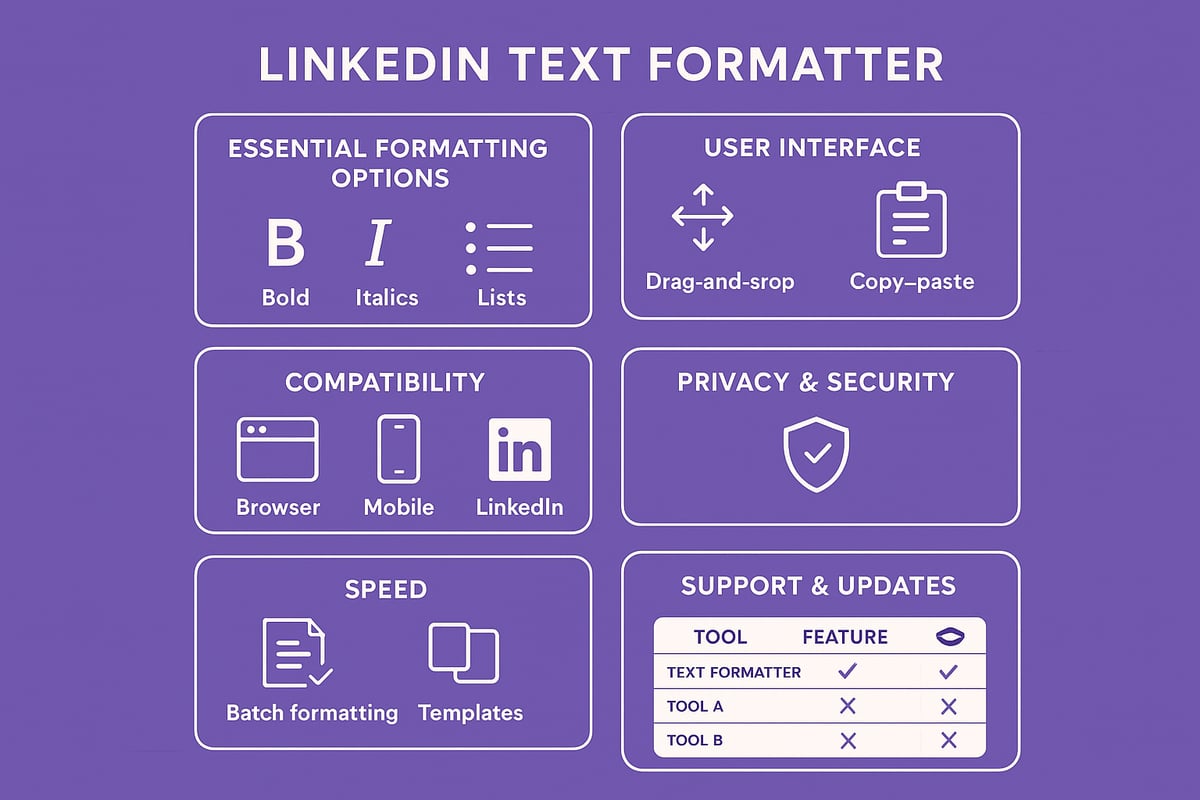
A high-quality linkedin text formatter must offer a variety of formatting options. These typically include bold, italics, underline, strikethrough, and monospace for text emphasis.
Bullet points, numbered lists, and custom symbols help organize information for better readability. Look for support for Unicode and special characters, which allows you to add unique visual touches to your content.
Rich text formatting lets your posts stand out, while Unicode ensures cross-platform compatibility. The best formatter tools balance both for maximum impact.
Ease of Use and User Interface
No one wants to struggle with complicated tools. The leading linkedin text formatter solutions focus on intuitive design.
A clear layout, drag-and-drop options, and easy copy-paste workflows make formatting quick and stress-free. Tooltips and visual previews help users see changes instantly.
Even non-technical professionals can format posts with minimal effort. This ease of use encourages consistent, professional presentation across posts and messages.
Compatibility and Integration
A powerful linkedin text formatter keeps your formatted text consistent when pasted into LinkedIn. Compatibility with web browsers, desktop, and mobile devices is critical.
Some formatter tools offer browser extensions or dedicated web apps for direct integration. This ensures your text looks the same on LinkedIn as it does in the tool.
Mobile compatibility matters, as many users access LinkedIn on the go. The best formatter tools adapt to all platforms and devices.
Privacy and Data Security
Your data matters. Trusted linkedin text formatter tools never store or misuse your content.
Look for tools with transparent privacy policies and secure data handling practices. Avoid options that request unnecessary permissions or save your formatted text without consent.
Choose formatter solutions that prioritize user privacy and undergo regular security audits. This gives you peace of mind with every post.
Speed and Efficiency
Time is valuable for professionals. The best linkedin text formatter tools offer batch formatting options, letting you prepare multiple posts or messages at once.
Reusable templates and formatting presets speed up daily workflows. These features are especially useful for content creators, recruiters, and marketers who regularly post on LinkedIn.
A fast formatter tool lets you focus on engagement, not editing.
Support and Updates
LinkedIn’s editor changes frequently. Top linkedin text formatter tools provide regular updates to stay compatible with platform changes.
Responsive customer support, clear documentation, and active user communities are essential. This helps users troubleshoot issues and learn new features quickly.
Regular updates ensure your formatting options stay current and effective in 2025.
Examples of Popular Formatter Tools
Several formatter tools stand out in 2025 for their reliability and feature sets. For example, the LinkedIn Text Formatter by AuthoredUp offers bold, italics, bullet points, and more, making it easy to create visually engaging posts.
Here is a quick comparison of top formatter tool features:
| Tool Name | Formatting Options | Device Support | Integration |
|---|---|---|---|
| Tool A | Bold, Italics, Lists | Web, Mobile | Browser Extension |
| Tool B | Unicode, Templates | Web | Copy-Paste |
| AuthoredUp | Bold, Italics, Bullets | Web, Mobile | Web App |
Selecting the right linkedin text formatter depends on your workflow, preferred features, and device usage. Evaluate these options to maximize your LinkedIn engagement.
Step-by-Step Guide: How to Format Text for LinkedIn in 2025
Ready to elevate your LinkedIn presence? This step-by-step guide will show you how to use a linkedin text formatter to create stylish, engaging content that stands out in 2025. From choosing the right tool to advanced shortcuts, you’ll find everything you need for professional, eye-catching LinkedIn posts.
Step 1: Choose the Right Formatter Tool
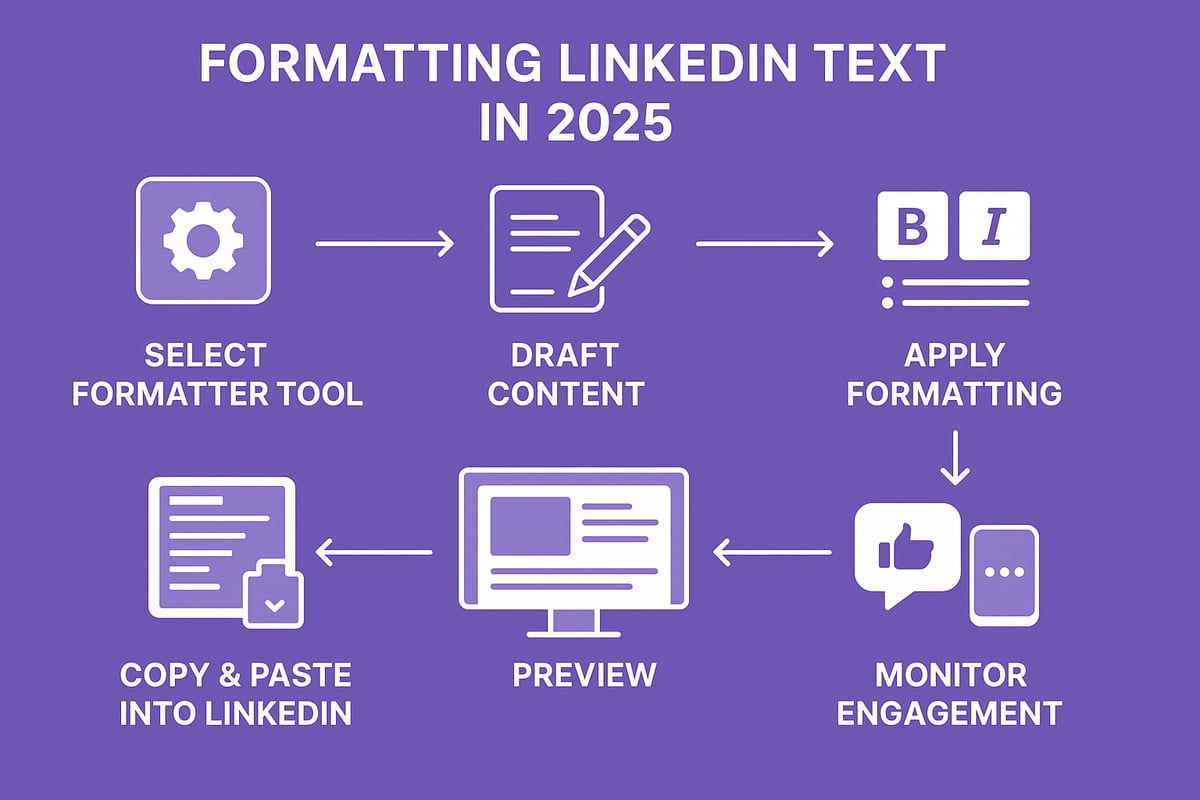
Selecting the best linkedin text formatter is your foundation for professional LinkedIn content. Start by evaluating tools based on formatting options, ease of use, privacy, and compatibility with LinkedIn’s 2025 editor. Decide if you need advanced features, such as batch formatting or templates. Free tools can be sufficient for simple needs, but paid solutions often offer more robust customization and support.
If you want to format directly within your browser, consider the LinkedIn Text Formatter Chrome Extension, which supports bold, italics, underline, and bullet points. Always check reviews and security policies before installing any extension.
Step 2: Write Your Content
A linkedin text formatter works best when your message is clear and concise. Begin by drafting your post, comment, or message in a simple text editor. Focus on your main point, use short paragraphs, and organize your thoughts logically.
Here are a few best practices:
- Start with a strong opening line.
- Use active voice for clarity.
- Break up dense text with spacing and lists.
Drafting first ensures your formatting highlights key ideas, not filler. Keep your language direct, and always tailor your message to your target audience.
Step 3: Apply Formatting
Now, it’s time to transform your draft using your chosen linkedin text formatter. Most modern tools let you select text and instantly apply bold, italics, underline, strikethrough, or lists with one click. Some offer drag-and-drop formatting, while others use simple buttons or shortcuts.
For example, to format a LinkedIn post for engagement:
- Bold your headline.
- Use bullet points for benefits.
- Italicize calls-to-action.
A formatter helps you create visual hierarchy, making your content more scannable and appealing. Always preview the output within the tool before copying.
Step 4: Copy and Paste into LinkedIn
Once your content shines in the linkedin text formatter, copy it carefully. Paste your formatted text into LinkedIn’s post editor, message composer, or profile section. Double-check that all formatting remains intact. Sometimes, LinkedIn’s editor may strip certain symbols or fonts.
If you notice formatting issues, try pasting as plain text first, then reformatting. Some special characters may not display the same across devices. Test with a short sample before posting a longer update.
Step 5: Preview and Edit
Before hitting publish, always preview your formatted content. LinkedIn displays text differently on desktop and mobile, so check both views if possible. Look for spacing errors, broken lines, or misaligned symbols that could affect readability.
A good linkedin text formatter will show you a preview, but nothing beats the real thing. Edit for clarity and professionalism. Remove any unnecessary symbols or styles that could distract from your message.
Step 6: Publish and Monitor Engagement
Timing matters. Use your linkedin text formatter to create posts and schedule them for peak engagement hours, like Tuesday and Wednesday mornings. After publishing, track key metrics: likes, comments, shares, and click-throughs.
Refine your formatting strategy based on what resonates. Posts with structured formatting see higher engagement, so keep experimenting. Monitoring results helps you optimize future content for even better results.
Advanced Tips and Shortcuts
Take your linkedin text formatter skills to the next level with these tips:
- Use keyboard shortcuts for speed (e.g.,
Ctrl+Bfor bold,Ctrl+Ifor italics). - Create reusable templates for regular updates or outreach.
- Batch format multiple posts to save time.
- Experiment with custom Unicode symbols for lists or dividers.
A table like the one below can help you remember key formatting shortcuts:
| Action | Shortcut |
|---|---|
| Bold | Ctrl+B |
| Italic | Ctrl+I |
| Underline | Ctrl+U |
| Bullet List | Alt+Shift+8 |
Keep Your Formatting Consistent
Consistency is the hallmark of professionalism on LinkedIn. Use your linkedin text formatter to establish a recognizable style for your posts, comments, and messages. This reinforces your personal or company brand across every interaction.
Review each post before publishing. Make sure your formatting supports your message, not distracts from it. With practice, these steps will become second nature, and your LinkedIn presence will stand out in any feed.
Advanced Formatting Strategies for Power Users
Unlocking the true power of the linkedin text formatter means moving beyond the basics. Power users layer formatting, tailor styles for each LinkedIn content type, and reinforce their brand identity while staying accessible and up-to-date. Here’s how to elevate your formatting game in 2025.
Combining Formatting for Maximum Impact
Power users know that combining bold, italics, and lists with the linkedin text formatter creates a clear visual hierarchy. Start headlines with bold text, emphasize key phrases in italics, and use bullet points for clarity.
- Bold for section headers or main points.
- Italics to highlight action steps or important dates.
- Lists to break down complex ideas.
Example:
**Key Steps:**
- *Research your audience*
- *Draft concise content*
- *Format for clarity*
Mixing styles keeps your LinkedIn content organized and engaging.
Formatting for Different Content Types
Different LinkedIn content types benefit from tailored formatting. With a linkedin text formatter, you can:
- Use concise bullets and bold in posts for scannability.
- Add subtle italics in comments to emphasize insights.
- Keep direct messages professional with minimal formatting.
- Structure LinkedIn articles with bold subheadings and numbered lists.
Adapting formatting to each context ensures your message resonates and stands out, no matter the medium.
Personalization and Brand Consistency
Personal branding thrives on consistency. Use the linkedin text formatter to develop signature styles, such as always bolding your name or using a unique bullet symbol. This reinforces your identity across posts, articles, and messages.
- Create reusable templates for recurring content.
- Align formatting choices with your company’s guidelines.
- Review your posts for visual consistency.
Want more on how personalization drives engagement? Check out Personalization in social media marketing for inspiration.
Accessibility and Internationalization
A powerful linkedin text formatter supports accessibility and global reach. Use clear fonts, avoid excessive symbols, and ensure colors have enough contrast for all readers.
- Stick to Unicode characters that display correctly in multiple languages.
- Avoid formatting that may not render well on non-English devices.
- Test your posts with screen readers for inclusivity.
These steps help your content connect with a diverse, international audience.
Staying Ahead of LinkedIn Updates
LinkedIn frequently updates its editor and formatting rules. Stay informed by following release notes, joining LinkedIn creator communities, and experimenting with new features.
For more advanced tactics and to keep your formatting sharp, visit LinkedIn hacks and filters. Continuous learning ensures you always get the most from your linkedin text formatter.
Troubleshooting and Best Practices
Mastering the linkedin text formatter can elevate your LinkedIn presence, but even experts encounter challenges. Let's break down common pitfalls, compliance essentials, professional standards, and resources to keep you at the top of your game.
Common Formatting Issues and Fixes
When using a linkedin text formatter, formatting may not always transfer seamlessly. You might notice lost bold or italics after pasting, especially if switching devices. Unsupported Unicode symbols can turn into blank squares, making your post appear unprofessional.
To fix these issues:
- Always preview your formatted text on both desktop and mobile.
- Stick to commonly supported symbols and simple formatting.
- If you encounter character errors, switch to a basic font or remove the problematic symbol.
A quick troubleshooting table:
| Issue | Fix |
|---|---|
| Lost formatting | Use plain text, reapply formatting |
| Unsupported symbols | Replace with standard characters |
| Device inconsistency | Test on multiple devices |
Consistency is key. Test before posting to ensure your linkedin text formatter results look sharp everywhere.
LinkedIn’s Formatting Policies and Compliance
LinkedIn enforces strict guidelines for text formatting and automation. Excessive symbols, spammy fonts, or third-party tools that mimic automation can trigger filters or even restrict your account.
Best practices for compliance:
- Use the linkedin text formatter only for enhancing readability, not for spamming.
- Avoid repeated posting of identical formatted content.
- Stay updated on LinkedIn’s rules, as they evolve often.
For a broader understanding of compliant strategies, review the LinkedIn marketing solutions guide to align your formatting with approved marketing best practices.
Maintaining Professionalism
Too much formatting can backfire. Using the linkedin text formatter should amplify your message, not distract from it. Avoid overuse of bold, all-caps, or excessive symbols, which can look unprofessional or spammy.
Follow these do’s and don’ts:
- Do: Use formatting for clarity, such as bolding key points.
- Do: Keep lists and symbols minimal.
- Don’t: Use unreadable fonts or color changes.
- Don’t: Overload posts with emojis or special characters.
Professional formatting builds trust and authority, reinforcing your personal brand.
Additional Resources
Staying sharp with your linkedin text formatter skills means continuous learning. Join LinkedIn groups focused on content creation, and follow industry blogs for updates on formatting trends and troubleshooting tips.
For more actionable advice on engagement and formatting, check out these tips to boost LinkedIn response rates. You’ll find practical steps to refine your approach and ensure your formatted content always stands out.
Explore tutorials, user forums, and LinkedIn’s own help center to troubleshoot new issues as they arise. Mastery comes from staying connected and informed.